Running the business
Orders & delivery
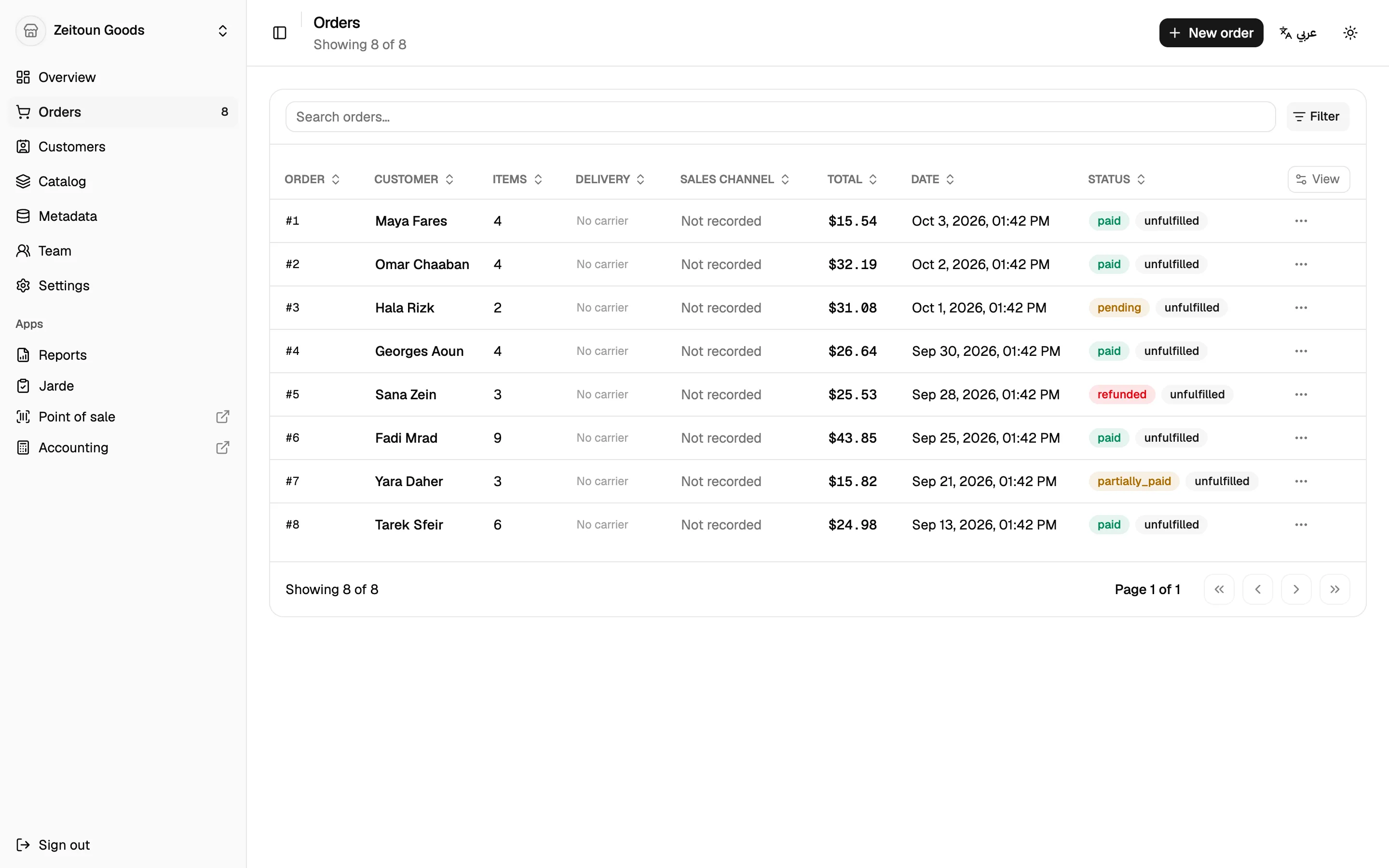
Every order lives in one list, whether it came from the till, the shop's website, or was entered by staff in the dashboard. That includes payment, packing, delivery, returns and refunds.
The orders list
- Search and filter by order number, customer, number of items, total, date, payment status, delivery status and sales channel (point of sale, online, entered by staff, or a partner storefront).
- Each order shows two separate labels: payment (paid, partly paid, pending, refunded…) and fulfilment (unfulfilled, partly shipped, shipped).
- Mark as paid or record a part payment right from the list.
- The sidebar shows a badge with the number of active orders.
Creating an order by hand
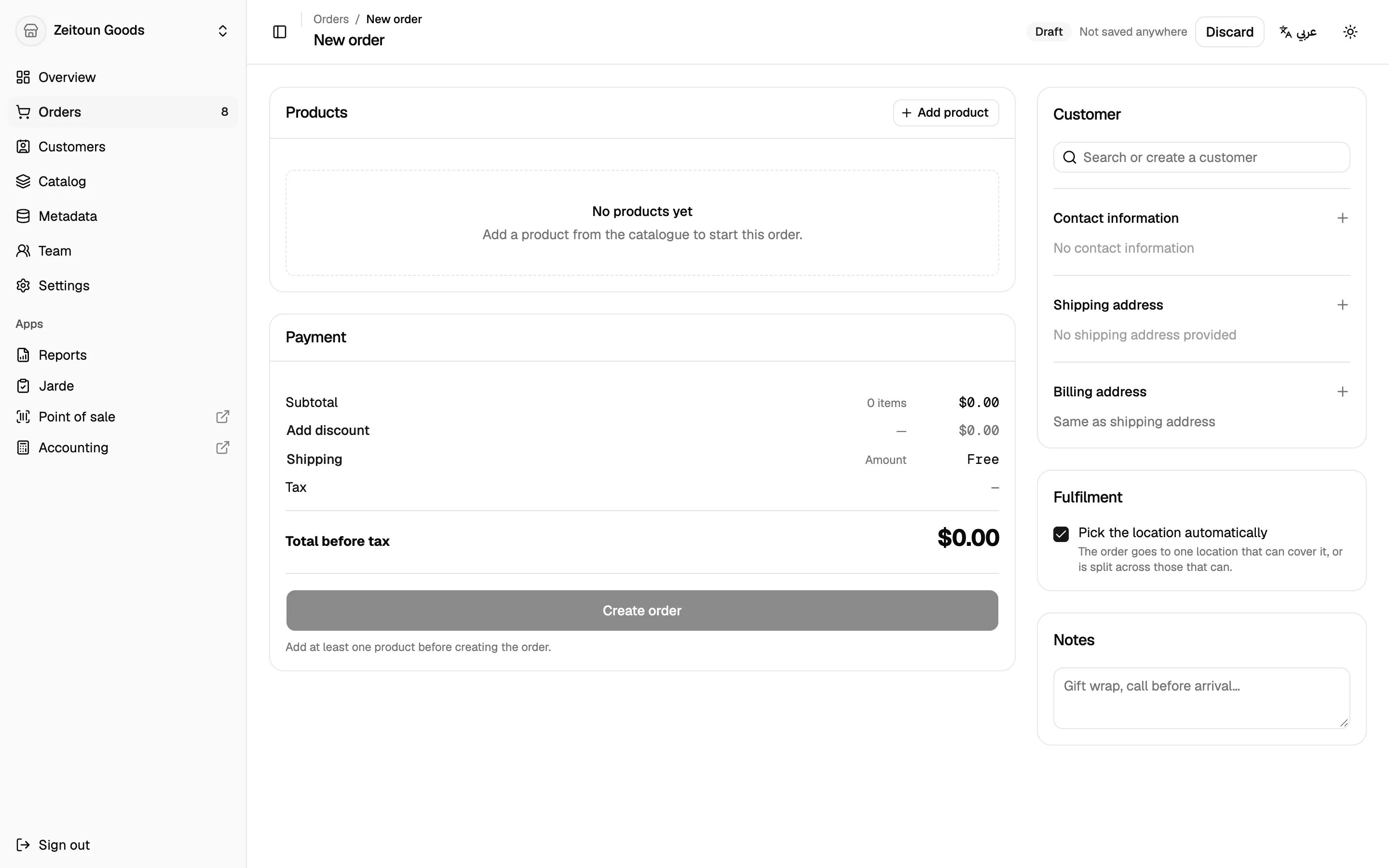
For phone orders, wholesale or special requests, staff can build an order in the dashboard:
- Find products by name or barcode, with stock shown for each branch
- Choose which branch each item ships from, or let Totlob pick automatically
- Override a price, give a line discount as an amount or a percentage, or give a whole-order discount with a reason
- Set the delivery fee (defaults to the shop's flat rate, and can be zero)
- Pick or create the customer, and edit their contact and delivery address
The order is saved as unpaid. Payment is recorded when it comes in. Clicking Create twice never creates two orders.
Order details
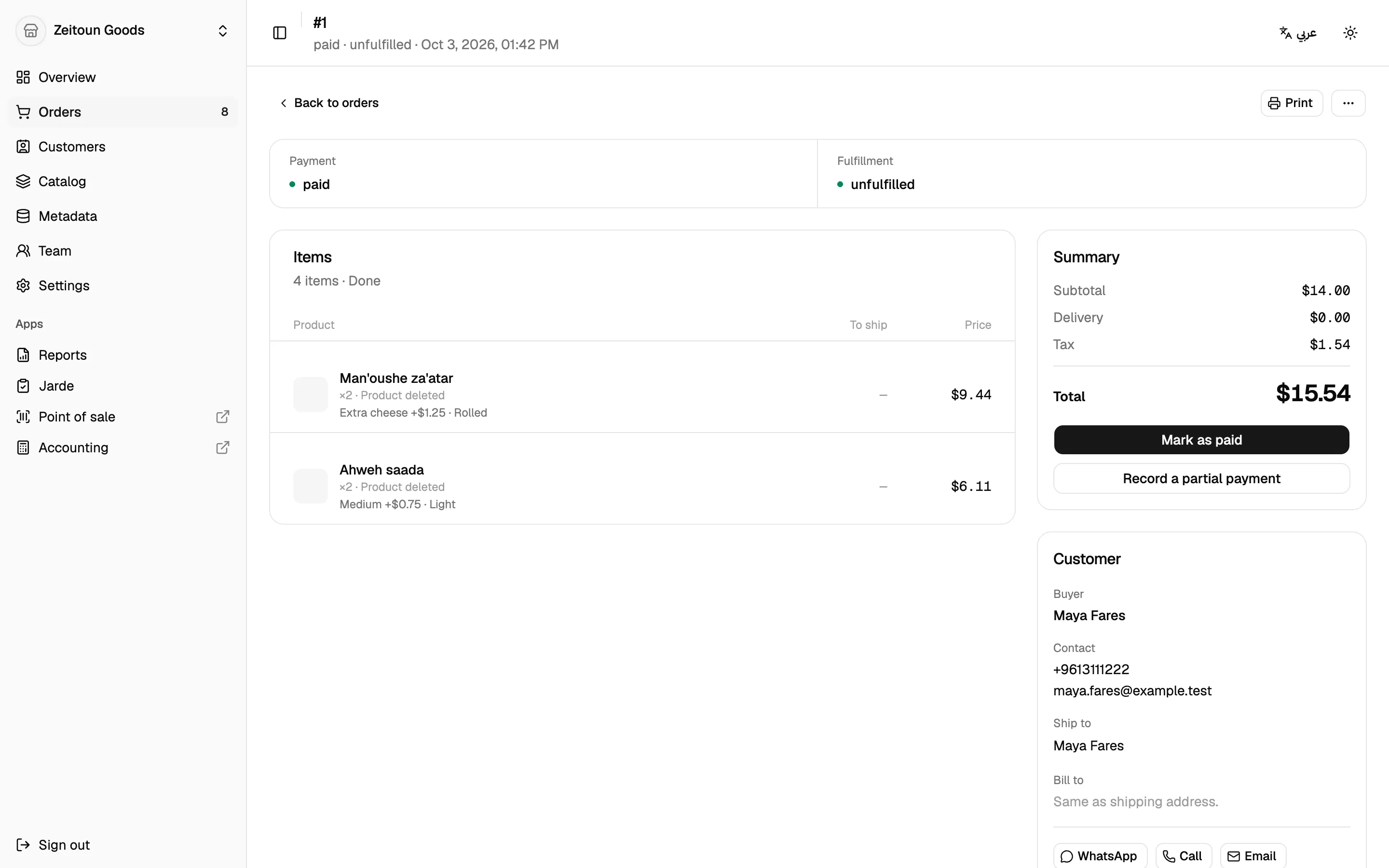
The order page shows what to do next with one main button: Mark as paid, Fulfil items and so on. Totlob only offers actions that make sense for the order's current state.
- Items, including till options and notes ("oat milk", "gift wrap")
- Customer card with one-tap call, email or WhatsApp
- Payment summary: collected, outstanding, part payments, and whether tax is included
- Print a packing slip (no prices, just the amount to collect) or an invoice
- Archive, reopen, or cancel with a reason
Fulfilment and tracking
- Ship all or some of an order. Choose quantities per item.
- Add tracking: pick from your own list of couriers (e.g. Aramex, Toters), and add the tracking number and link.
- Edit tracking later, or cancel a shipment if needed.
Refunds
- Totlob calculates the refund for you, including tax, and never lets you refund more than was collected.
- Optionally refund the delivery fee.
- For each item, choose whether it goes back into stock.
- On an unpaid order, the same screen simply puts stock back without moving money.
Returns
Returns are handled separately from refunds, the way real shops work:
- Open a return for items that were shipped, with a reason per item (defective, wrong item, wrong size…).
- Track it on its way back, if needed.
- Receive it and decide each item's fate: restock, damaged, not restocked or disposed. Partial receipt is fine.
Opening a return doesn't move money or stock. Stock changes only when the items are received, and money only moves when you refund.