Selling in store
The point of sale
The Totlob till is built for speed at a busy counter. It works with large touch targets, a barcode scanner, or both, and it always tells the cashier what's happening and why.
Signing in
- Email and a one-time code. There are no passwords to forget or share. The code arrives by email and the till signs in when the sixth digit is typed.
- One click from the dashboard. Managers already signed in to the dashboard can open the till in a new tab without signing in again.
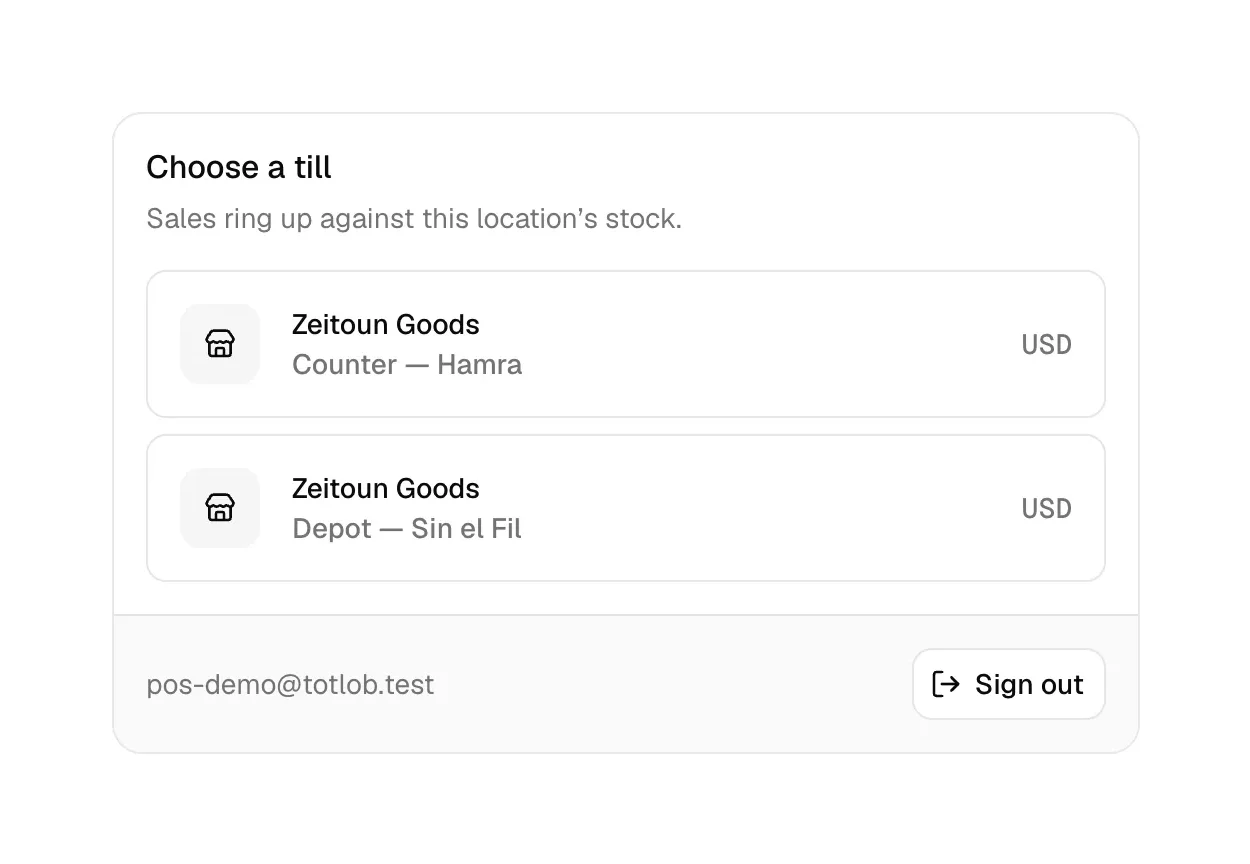
- Pick your till. Staff see only the branches they're allowed to sell at. The till remembers the choice for next time.
Finding products
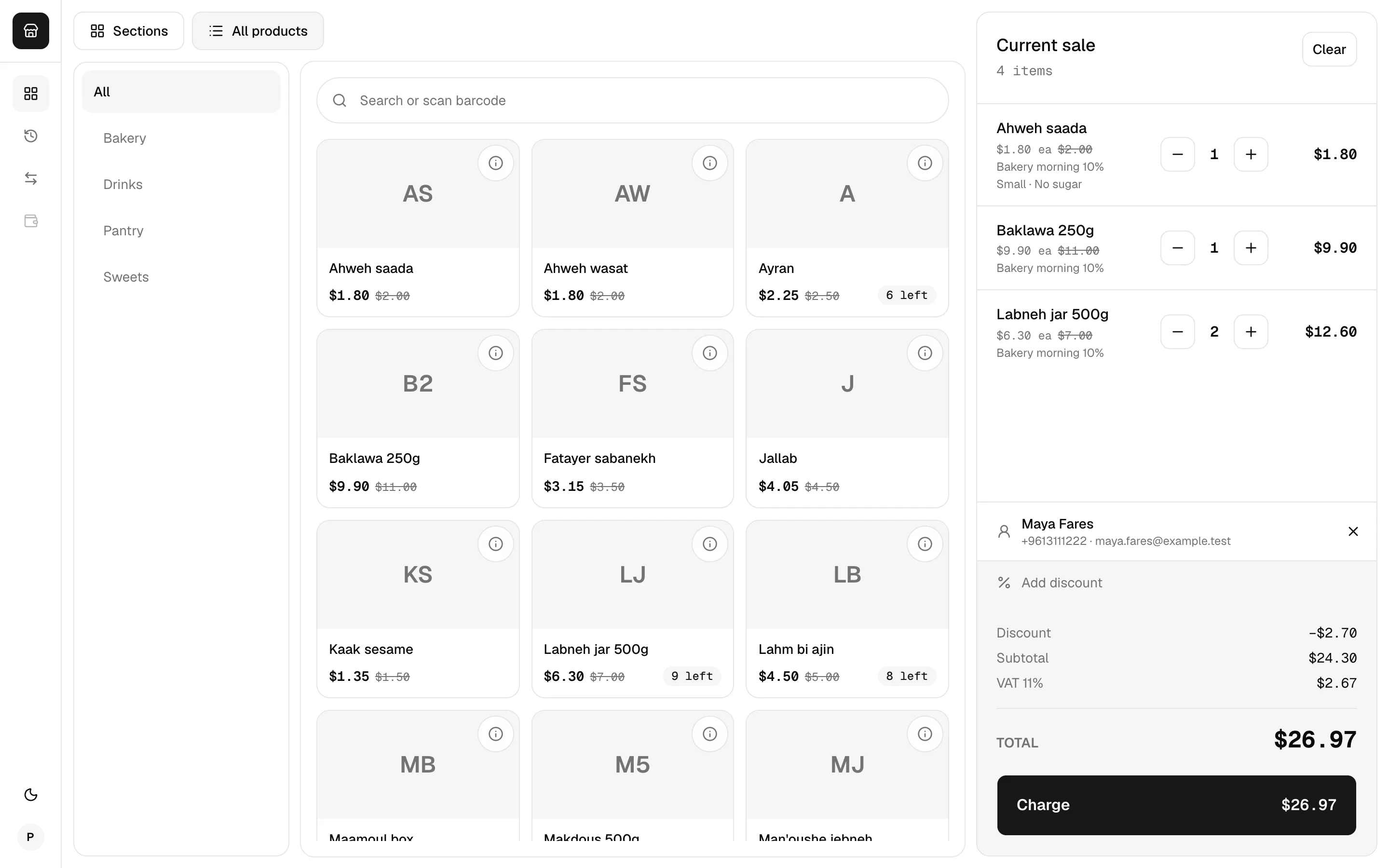
The selling screen has three columns: ways to browse on the left, products in the middle, and the current sale on the right.
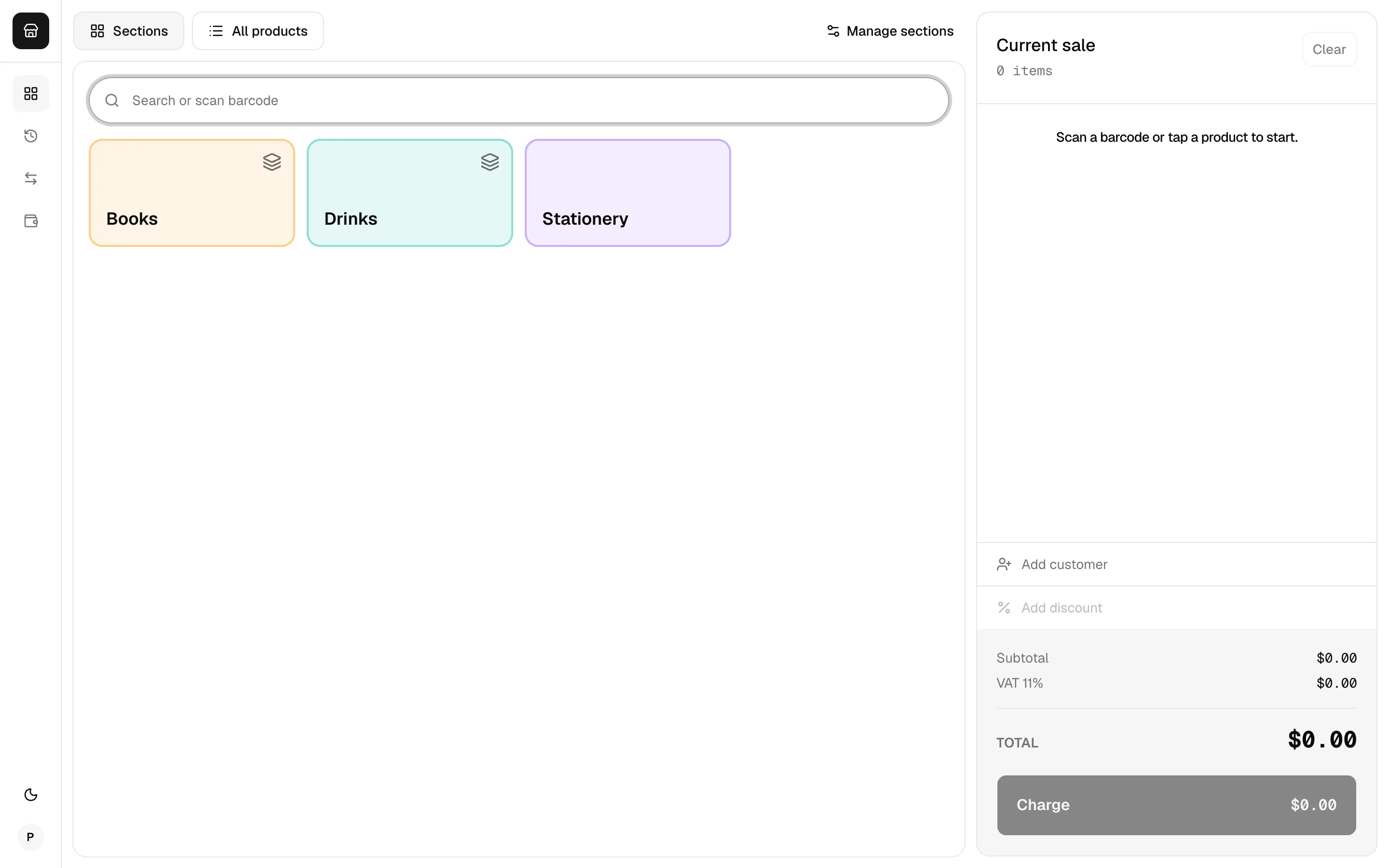
Till sections
Sections are the till's home screen: big, colour-coded tiles such as Café, Hot drinks, Bestsellers or Stationery. Sections can contain other sections, so a barista can tap Café → Hot drinks → Flat white in three taps.
Managers can set sections up right on the till: create, rename, recolour, reorder, nest, and add or remove products. Changes save instantly and apply to every till in the shop.
All products
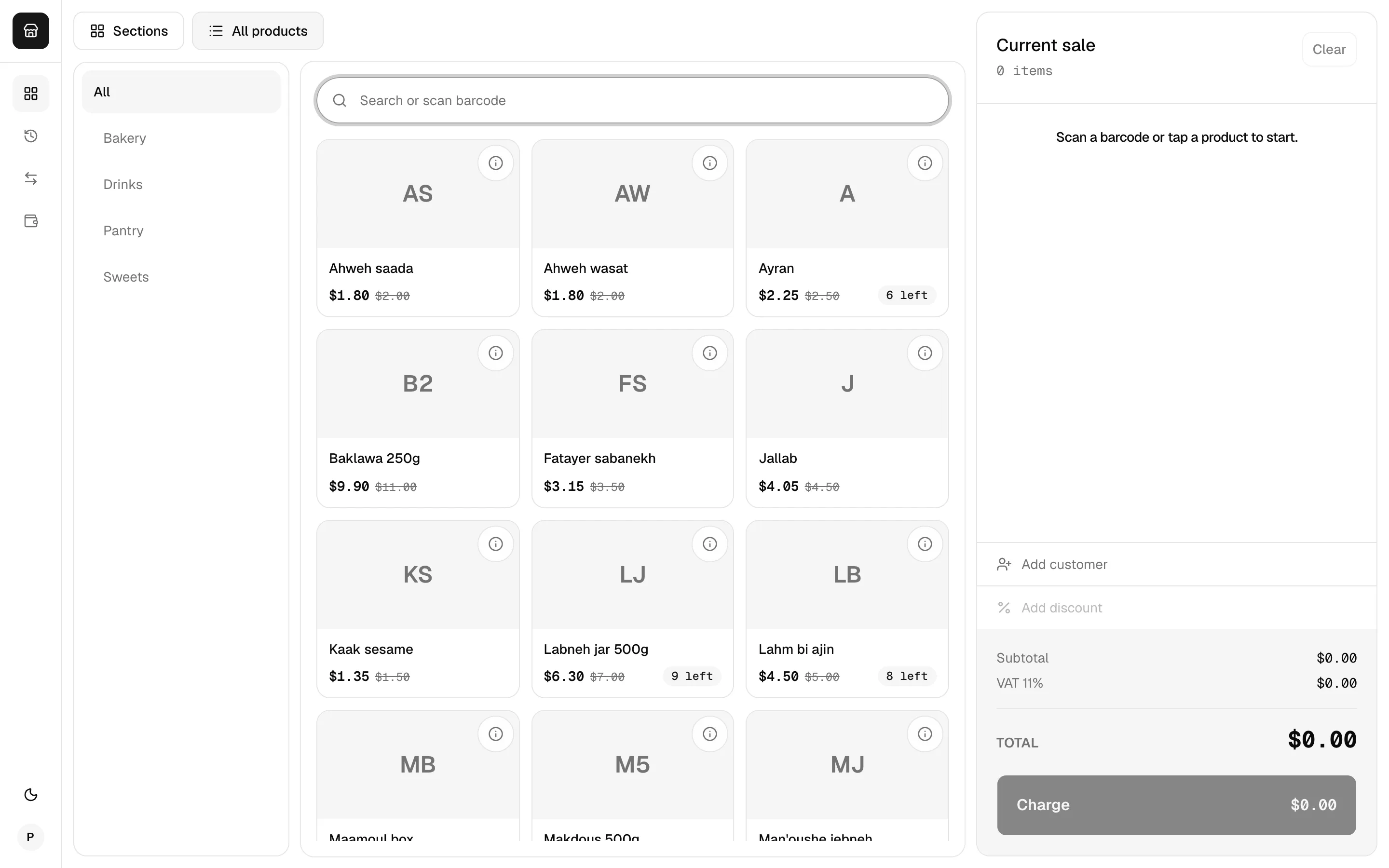
Switch to All products to browse the full catalogue by category. Categories expand in place, and every level shows its products, so tapping Books shows every book beneath it.
Search and scan
- One search box finds any product by name, SKU or barcode across the whole shop.
- Barcode scanners just work. The till recognises a scan, as opposed to typing, and adds the item straight away. An unknown barcode always shows a clear message.
- Press Enter when only one product matches to add it.
Product tiles
Each tile shows the photo, the price (with the old price crossed out when a discount applies), and stock:
- "3 left" when stock is running low
- Sold out when nothing is left. The tile is greyed out unless the product is allowed to sell past zero.
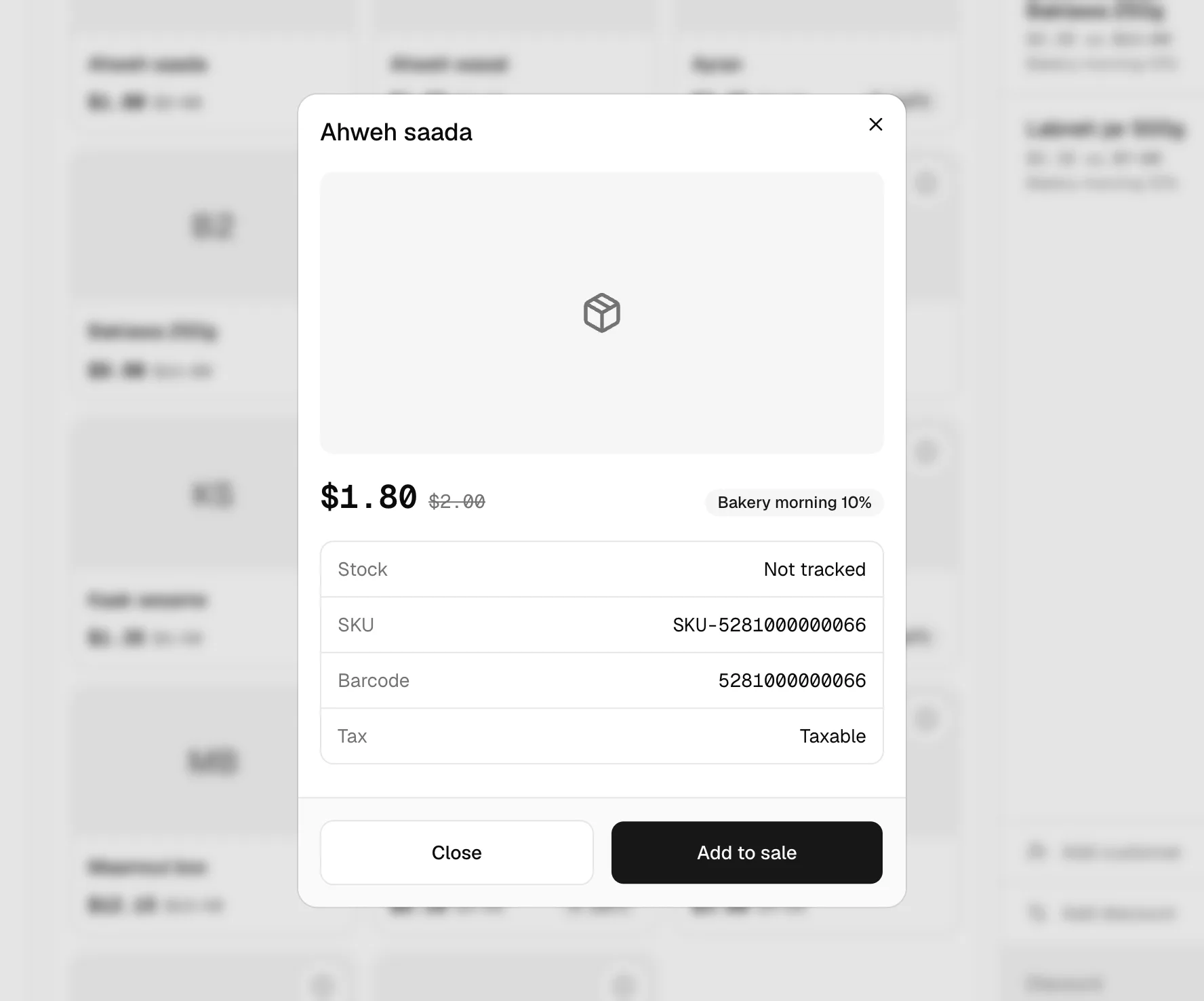
Tap the ⓘ on any tile for details: the large photo, stock at this branch, SKU, barcode and whether it's taxed.
Customising items (modifiers)
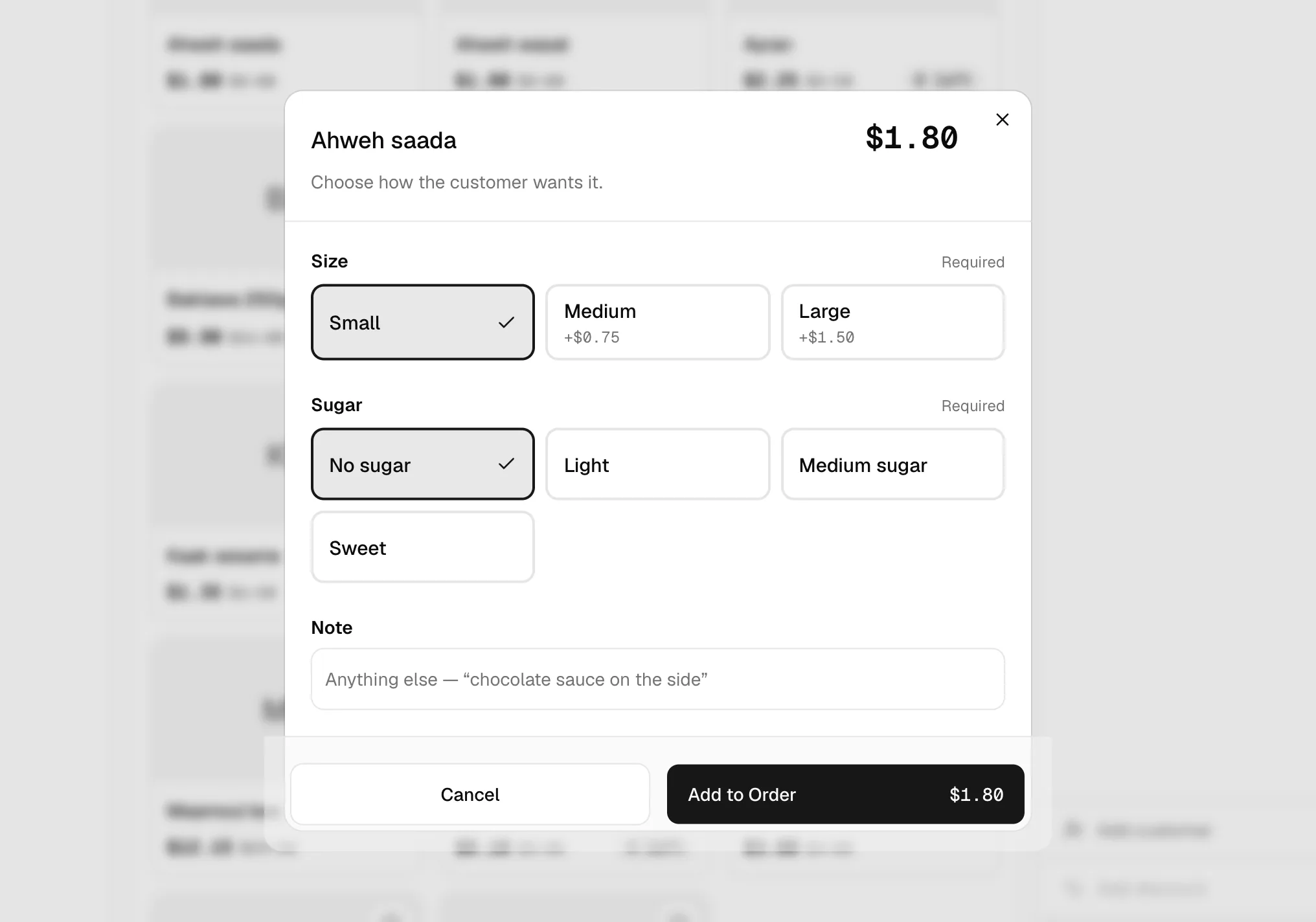
For made-to-order products like drinks, a panel opens when the item is tapped:
- Required choices come first, e.g. Milk: pick 1.
- Optional extras, e.g. Syrups: up to 2, with their price ("+$0.50").
- Sensible defaults are pre-selected.
- The running price updates as options are chosen.
- Add a note for the kitchen or barista ("chocolate sauce on the side").
The Add button stays disabled, with the reason shown ("Choose Milk"), until every required choice is made.
The sale
- Change quantities with + and −. The till stops at the stock available unless the product can be oversold.
- Add the same plain item again and the quantity goes up. A customised item always gets its own line.
- Attach a customer (see Customers).
- Add a discount: a promo code, or a manual discount with a reason and a manager's PIN (see Discounts).
- The total shows the discount, subtotal and VAT, inclusive or exclusive depending on the shop's settings.
- One big Charge button takes you to checkout.
Designed for the counter
- Touch-first. Large buttons and tactile press feedback. The page itself never scrolls, only the panels do.
- Always explains itself. Every disabled button says why: "Finish the sale to close", "Open the drawer to sell".
- Light and dark mode, or follow the device's setting.
- Can't charge twice. If the network drops while a sale is completing, pressing Complete again won't charge the customer twice. The till shows "Already completed" and marks the receipt as a reprint.
Language
The till's screens are currently in English. Product and shop names come from the catalogue, and the dashboard is fully bilingual (English and Arabic).